Documentation
Registration questions
Registration questions are available for Solo tournaments only for now. Side-by-side and team tournaments keep the payment options of their Payments page.
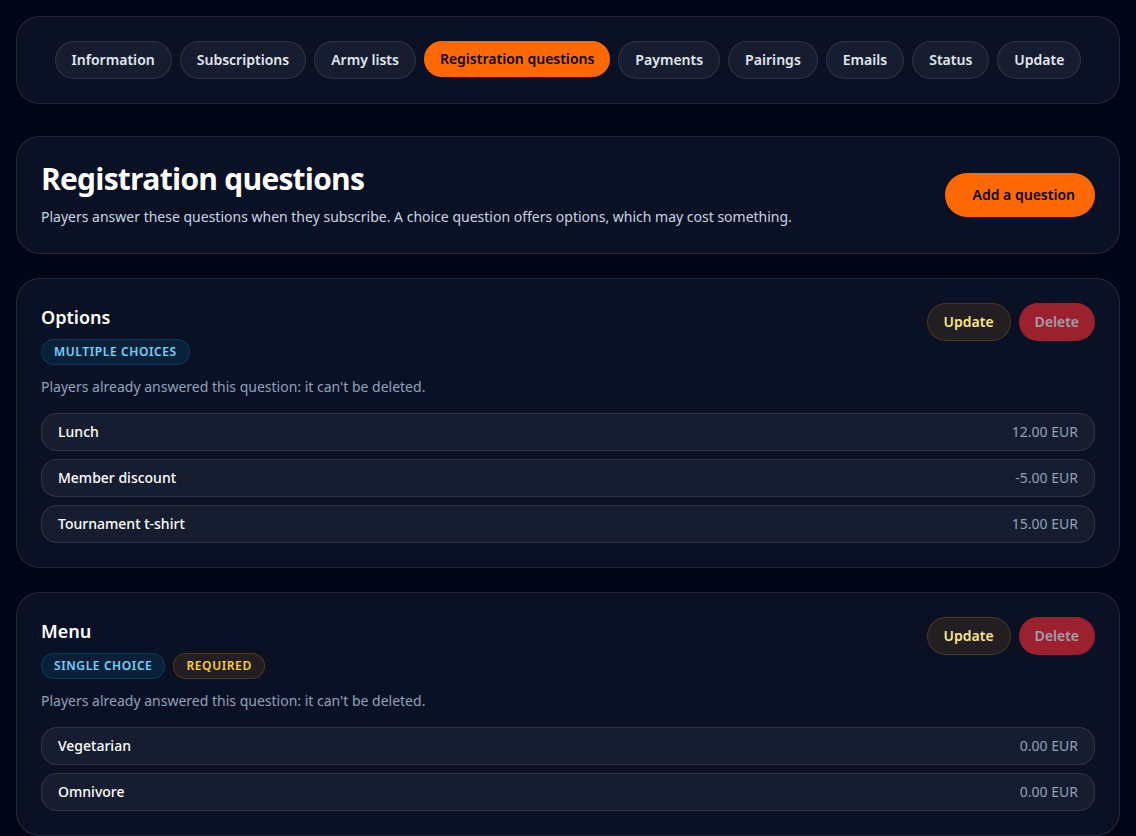
Registration questions are asked to the players when they register: menu, t-shirt size, goodies… In the administration of your tournament, open the Registration questions tab, then click on Add a question.
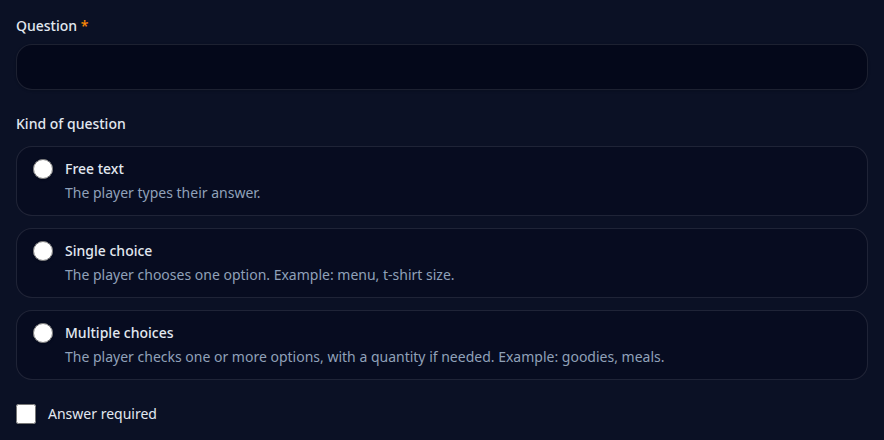
A question has a kind: free text (the player types their answer), single choice (the player chooses one option, for a menu or a t-shirt size) or multiple choices (the player checks one or more options, for goodies or meals). A question can be required: the registration is then refused without an answer.
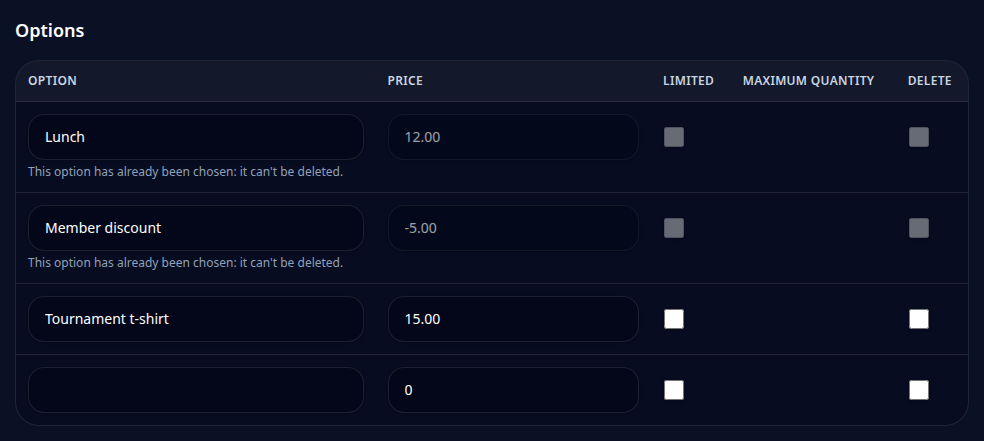
Each option of a choice question has a price, added to the tournament price. It can be zero for a free option, or negative for a discount. A non-zero price needs a payment account on the tournament, and the total can't be negative.
In a multiple choices question, check Limited on an option so that the player types how many they want, up to the maximum quantity. Its price is then counted for each unit.
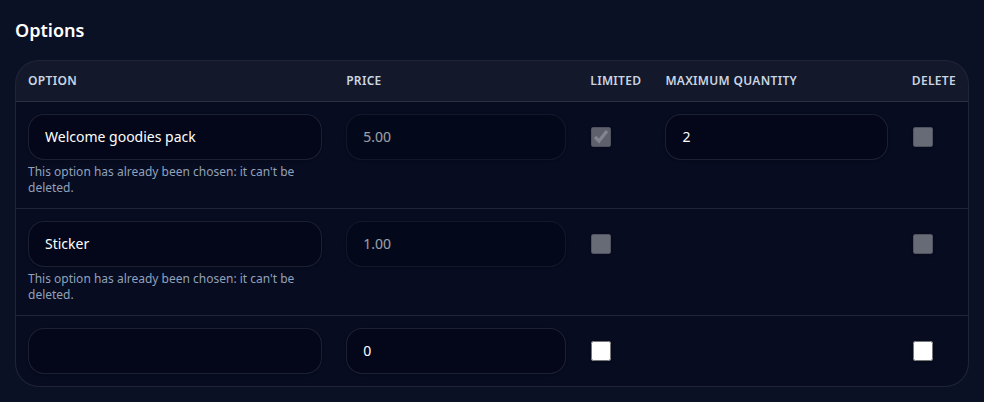
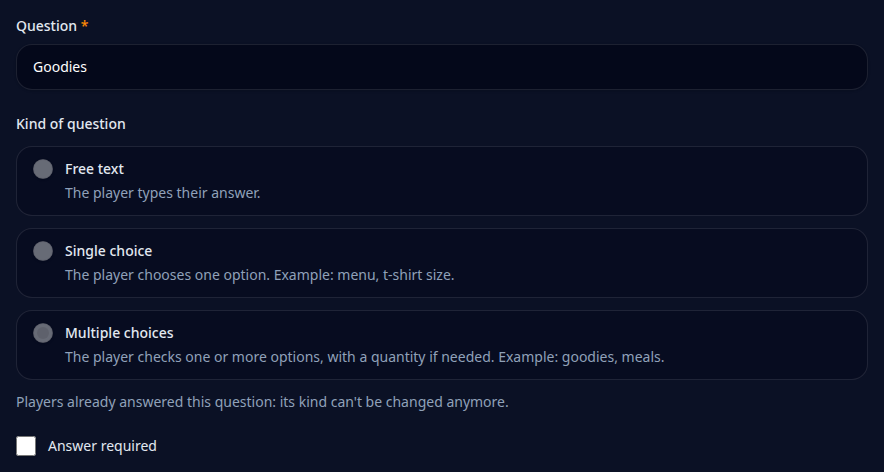
Once a player answered, the kind of the question, and the price and Limited box of the chosen options, can't be changed anymore, and they can't be deleted. Labels, the answer required setting and maximum quantities stay editable.
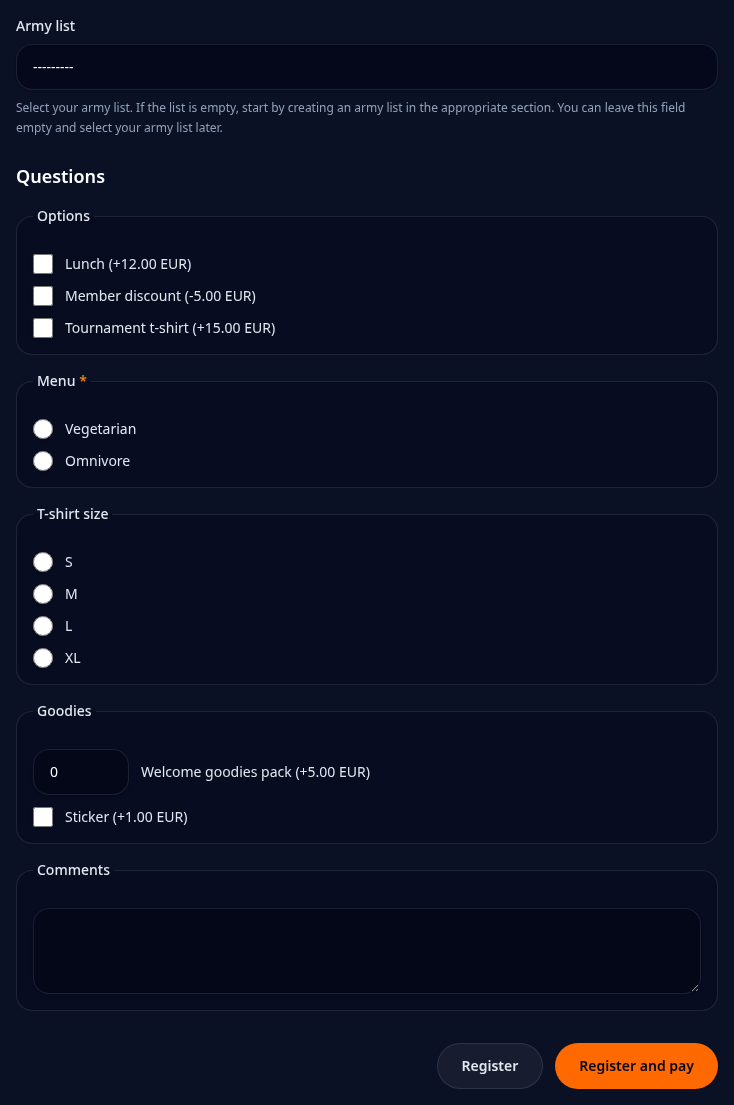
The questions are shown under the army list when the player registers. With online payment, they can pay as soon as they register, with Register and pay, or later, from their subscription page.
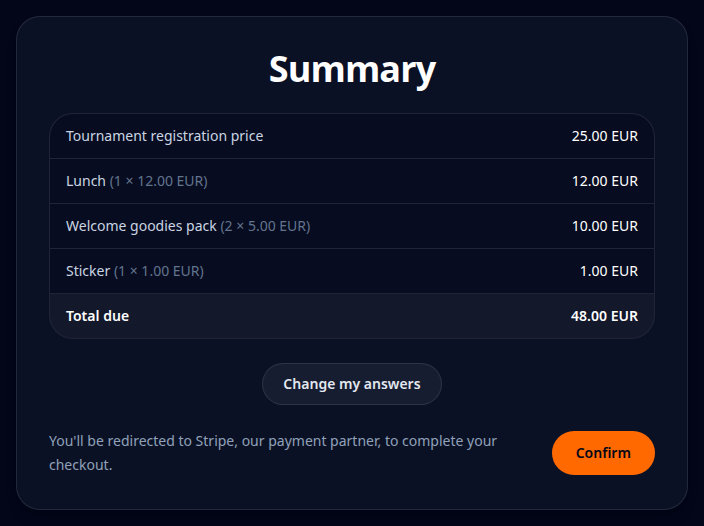
A summary of the price, the chosen options and the total due is shown just before each payment, and the player can change their answers there as long as their payment isn't accepted: they always pay for their last answers. With HelloAsso, which can't cancel a payment once started, the answers can't change for 45 minutes after the player goes to the payment page, until HelloAsso considers that payment abandoned.
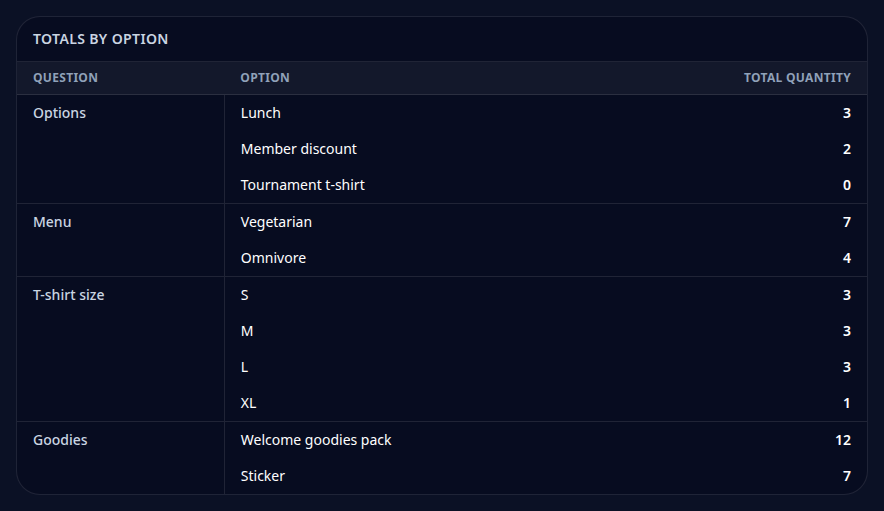
The answers are shown in the details of each subscription, and the total quantity of each option under the subscriptions list.
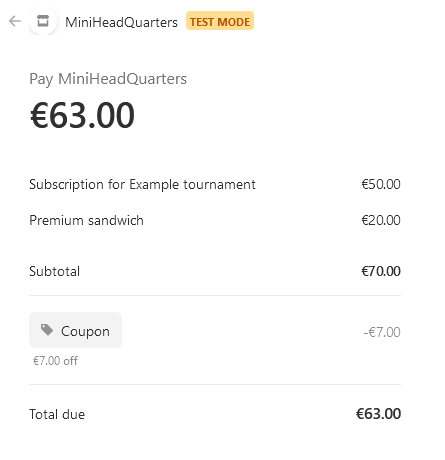
Finally, during Stripe checkout, options will be listed as discounts (for negative amount options) or item lines (for positive amount options).